




Quicker, Easier Way to Pay: Put Your SCFCU Debit and Credit Card in Your Digital Wallet
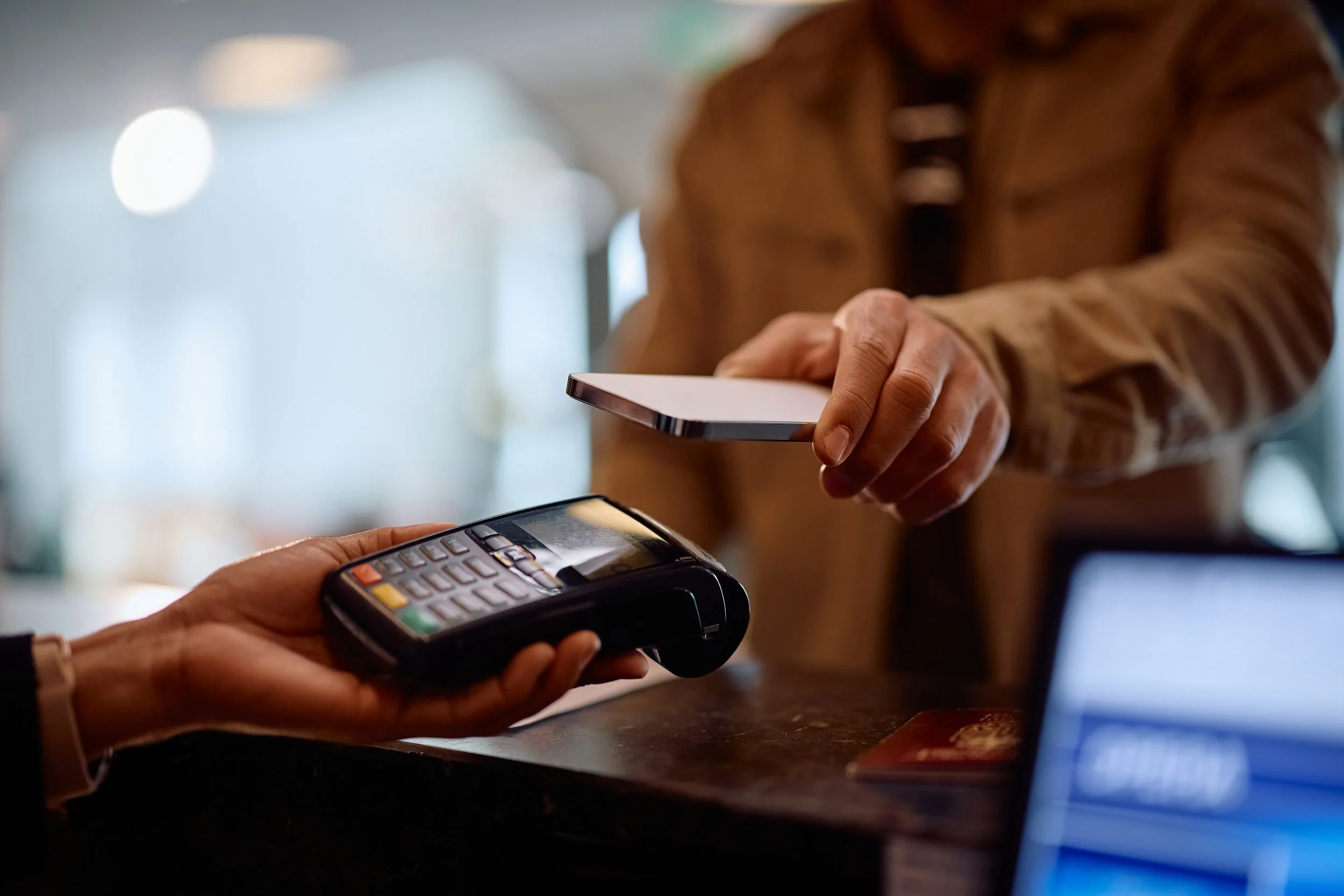
Your phone already goes almost everywhere with you. Your debit and credit cards can too.
Adding your St. Cloud Financial Credit Union debit or credit card to your digital wallet gives you another quick and convenient way to pay without having to reach for your physical card.
Whether you use Apple Pay or Google Wallet, you can keep your card right on your phone and use it for everyday purchases.
What is a Digital Wallet?
A digital wallet securely stores your eligible card information on your phone or other compatible device. Instead of pulling out your physical card when it’s time to pay, you can use your device wherever digital wallet payments are accepted.
Think Apple Pay or Google Wallet — your cards are available right from a device you likely already have with you.
Why Add Your SCFCU Card?
Adding your debit or credit card to your digital wallet can make everyday purchases a little easier.
Quick — Just tap your phone or device to make purchases
Convenient — Your card is available even when your physical card or wallet isn’t
Secure — Digital wallets use security features built into your device and wallet platform to help protect payment information
Easy to Access — If SCFCU issues you a new eligible debit card digitally through Online Banking, it can be added to your digital wallet without waiting for the physical card to arrive
How to Add Your Card
You can get started right from the SCFCU Mobile App, available on both the Apple App Store and Google Play.
First, sign into the app.
Tap More in the lower-right corner.
Under Tools, select Card Management.
Swipe to the card you want to add.
From there, you’ll have the option to continue with Apple Pay or Google Wallet.

Adding Your Card to Apple Pay
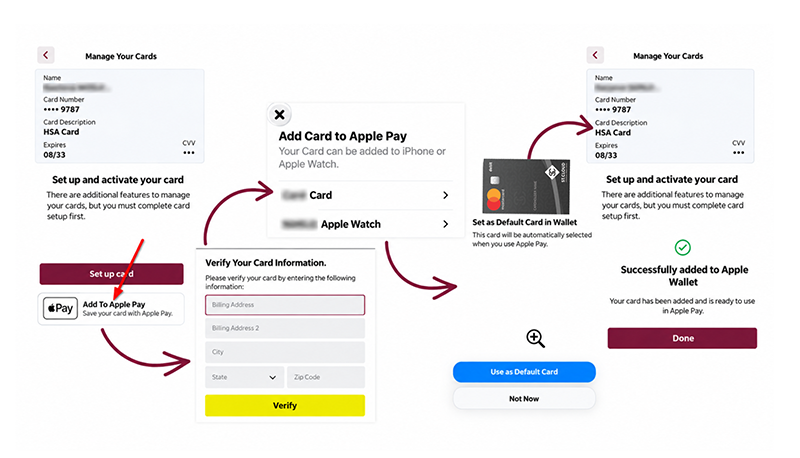
From the Manage Your Cards screen:
Tap Add to Apple Pay
Enter and verify your information
Select the device you want to add the card to
Confirm your name and card information
Review and agree to the terms
Choose whether you want to make it your default card
After adding your card to Apple Pay, you will get a letter in the mail confirming the addition of your card. If you get this letter and did not add your card to Apple Pay, please call the phone number listed on the back of your card or billing statement.
Adding Your Card to Google Wallet
From the Manage Your Cards screen:
Tap Add to Google Wallet
Confirm the card and tap Continue
Enter and verify your information
Select Add to Wallet
Confirm your billing address
Review and accept the terms
After adding your card to Google Wallet, you will get a letter in the mail confirming the addition of your card. If you get this letter and did not add your card to Google Wallet, please call the phone number listed on the back of your card or billing statement.

Tap. Pay. Keep Moving.
Your phone is already part of your everyday routine. Adding your SCFCU debit or credit card to your digital wallet can make paying just as easy.
Open the SCFCU Mobile App to get started, learn more about our debit cards and credit card options — with rates as low as 9.99%! — and chat with us online or give us a call at 320-252-2634 if you have any questions.